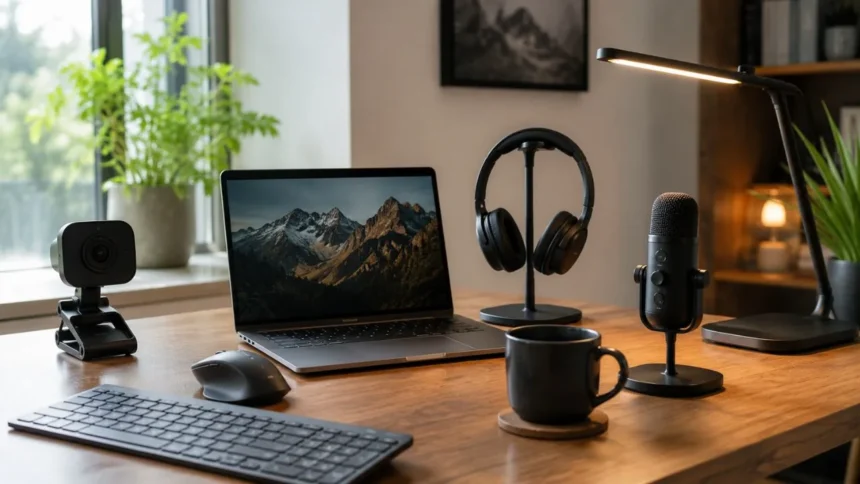
Working from home can save travel time and provide more control over your daily routine. However, a laptop placed on a small table is not always enough for comfortable and productive work. Poor sound, a weak camera, limited screen space, and tangled cables can make simple tasks harder. The right home office gadgets can solve these problems.
A useful work-from-home setup should support clear meetings, comfortable typing, focused work, and easy connections between devices. You don’t need to buy every new product or build an expensive office. A few carefully selected gadgets can improve your working day more than a desk filled with items you rarely use.
This guide covers five of the best gadgets for working from home: the Dell UltraSharp U2725QE monitor, Logitech MX Keys S keyboard, Logitech Brio 505 webcam, Sony WH-1000XM6 headphones, and Anker Prime 14-in-1 Docking Station. Each product solves a different home office problem. Together, they can create a more complete workspace.
Prices and availability differ by country, seller, and time of year. Some products in this guide are premium choices, but each section also explains who truly needs the device. You should choose products based on your job, computer, available space, and budget. Expensive equipment is only useful when it improves real work.
Quick List of the Best Work-from-Home Gadgets
The Dell UltraSharp U2725QE is the best gadget for people who need more screen space. It has a 27-inch 4K display, a 120Hz refresh rate, an adjustable stand, and a large collection of ports. It can also provide up to 140W of power through Thunderbolt 4 to supported laptops. This allows one cable to handle video, data, and charging.
The Logitech MX Keys S is the best keyboard for long writing and office sessions. It has low-profile keys, smart backlighting, multi-device support, and programmable shortcuts. The shaped key surfaces are designed to guide the fingers while typing. It is a practical upgrade for people who dislike working all day on a laptop keyboard.
The Logitech Brio 505 is the best webcam for normal remote meetings. It records at up to 1080p and includes automatic light correction, autofocus, noise-reducing microphones, and a privacy shutter. Logitech lists support and certification for popular meeting services such as Microsoft Teams, Google Meet, and Zoom.
Sony WH-1000XM6 headphones are the best choice for reducing distractions and handling calls. The Anker Prime 14-in-1 Docking Station is the best device for connecting monitors, storage, Ethernet, and accessories through one hub. Sony rates its headphones for up to 30 hours with noise cancellation on, while Anker’s dock offers 14 ports and high-power laptop charging.
Why Good Home Office Gadgets Matter
A poor home setup can waste time in small ways throughout the day. You may need to reconnect cables, search through windows on a small screen, repeat yourself during calls, or move to a quieter room. Each problem may seem minor, but repeated interruptions can reduce concentration. Good equipment removes some of these daily problems.
Comfort also affects how long you can work without feeling tired. A full-size keyboard can place your hands in a more natural position than a narrow laptop keyboard. A larger monitor can reduce constant window switching. Comfortable headphones can lower the need to increase the volume when background noise is present.
Remote work also depends heavily on communication. Coworkers and clients judge meetings through the quality of your internet connection, camera, sound, and lighting. A dedicated webcam can improve your image, while a good microphone can make speech easier to understand. These details matter during interviews, sales calls, presentations, and team meetings.
However, gadgets cannot fix every productivity problem. A premium monitor won’t improve work if notifications interrupt you every few minutes. Noise-cancelling headphones won’t help if your schedule is poorly planned. Equipment should support clear routines, focused work, regular breaks, and realistic daily goals.
1. Dell UltraSharp U2725QE: Best Monitor for Home Offices
The Dell UltraSharp U2725QE is a 27-inch monitor designed for professional and office use. It provides a 4K resolution of 3840 by 2160 pixels, which gives users more space for documents, browser windows, spreadsheets, and creative programs. The display also supports a 120Hz refresh rate, making scrolling and screen movement appear smoother.
One of its strongest features is the built-in Thunderbolt and USB hub. A compatible laptop can connect through a single Thunderbolt 4 cable for video, data, and up to 140W of charging. The monitor also includes HDMI, DisplayPort, USB-C, USB-A, audio, and 2.5Gb Ethernet connections. This can reduce the number of separate adapters on your desk.
The monitor uses an adjustable stand that supports height, tilt, swivel, and rotation changes. These controls help users position the screen closer to eye level. The display also includes Dell’s eye-comfort features and an ambient light sensor. Proper screen position and sensible brightness are still important during long working sessions.
Its biggest weakness is price. This is a premium monitor built for people who want high resolution, strong connectivity, and a cleaner one-cable laptop setup. Users who only check email or write short documents may not need such an advanced model. A lower-priced 24-inch or 27-inch QHD monitor may be enough for basic work.
How a Larger Monitor Improves Productivity
A larger screen makes it easier to keep several windows visible at the same time. You might place a video meeting on one side and your notes on the other. A writer can view research while drafting an article. A finance worker can compare spreadsheets without constantly minimizing and reopening windows.
A 4K display can show small text and detailed images clearly, but users should adjust scaling in the operating system. Without scaling, text may appear too small on a 27-inch screen. Windows and macOS allow you to enlarge text and interface elements while keeping the benefits of the higher resolution.
The 120Hz refresh rate is not only for gaming. Smoother movement can make scrolling through long websites, spreadsheets, and documents feel more comfortable. It does not directly make a person work faster, but it can improve the general experience. Users coming from a basic 60Hz display may notice the difference.
The built-in hub is especially helpful for laptop users. You can leave the keyboard, mouse, network cable, and other accessories connected to the monitor. When you begin work, one cable can connect the laptop to the complete setup. This reduces setup time and keeps the desk cleaner.
Dell U2725QE Pros and Cons
The main advantage is the combination of display quality and connectivity. You receive a sharp 4K screen, smooth 120Hz movement, an adjustable stand, and a wide collection of ports. The monitor can become the center of a home office instead of acting only as a screen.
Another benefit is high-power laptop charging. Up to 140W can support many professional laptops through one cable, although the laptop must support the required charging standard. Users should confirm compatibility because not every USB-C laptop accepts the same amount of power.
The disadvantages are its high cost and large number of features that basic users may never use. It also requires enough desk space for a 27-inch screen and stand. People who work only on short emails or simple web tasks may receive better value from a cheaper monitor.
Choose the Dell U2725QE when your work involves spreadsheets, design, coding, writing, research, or several applications at once. It is also a strong option when you want one cable to connect and charge a capable laptop. Avoid paying the premium if you don’t need 4K resolution or advanced ports.
2. Logitech MX Keys S: Best Keyboard for Long Work Sessions
The Logitech MX Keys S is a low-profile wireless keyboard designed for office work, writing, and productivity. Its keys have rounded, dish-shaped surfaces that help guide the fingertips. The keyboard includes a full number pad, arrow keys, function controls, and shortcut buttons. This makes it suitable for both writing and spreadsheet work.
The keyboard can connect to several supported devices and lets users switch between them. This is useful when someone works with a desktop computer, laptop, and tablet. Bluetooth support reduces the need for a cable, while Logitech’s receiver can provide another connection option. Compatibility depends on the device and operating system.
Smart backlighting is another useful feature. Sensors can turn on the key lighting when your hands approach the keyboard and adjust it based on the surrounding light. This helps in darker rooms without leaving the lights at full brightness all day. Backlighting uses more battery, so users can reduce or disable it when needed.
The keyboard can also use Logitech Options+ software for custom shortcuts and Smart Actions. Users may create buttons for opening apps or completing repeated steps. These features are optional, and the keyboard works for ordinary typing without complex setup. Beginners can start with the normal controls and explore customization later.
How a Better Keyboard Helps Remote Workers
Laptop keyboards are useful for travel, but they can feel cramped during long working sessions. A separate keyboard allows you to place the laptop or monitor at a better height while keeping your hands lower on the desk. This can create a more flexible workstation. A separate mouse should be used beside it.
People who write reports, articles, emails, or code may press thousands of keys each day. Small differences in spacing and key feel can therefore become important. The MX Keys S uses short key movement and a stable body. Users who prefer deep mechanical switches may find it too flat.
The number pad is helpful for finance, accounts, data entry, and spreadsheet work. However, it makes the keyboard wider and pushes the mouse farther to the side. People with small desks or those who rarely enter numbers may prefer the smaller MX Keys Mini. Keyboard size should match both your work and available space.
Multi-device switching is helpful in mixed work setups. You can type on a work laptop and then switch to a personal computer without changing keyboards. This reduces desk clutter and repeated pairing. Company security policies may limit the use of personal accessories with managed work devices.
Logitech MX Keys S Pros and Cons
The MX Keys S offers comfortable low-profile typing, automatic backlighting, multi-device support, and useful software controls. It feels more complete than a basic keyboard without becoming as loud or tall as many mechanical models. Its full-size layout suits users who need function keys and a number pad.
Another advantage is broad compatibility with common operating systems. The key labels are designed for use across Windows and macOS layouts. Users can also connect through Bluetooth or an approved receiver. This makes it easier to keep the keyboard when changing computers.
The main disadvantages are price and personal preference. Some users may prefer a mechanical keyboard with deeper movement, while others may want a smaller model. The full-size design needs more desk width. Backlighting and wireless features also mean the keyboard must be recharged.
Choose the MX Keys S when you type for several hours each day and want a quiet, professional keyboard. It is especially suitable for writers, office employees, developers, and spreadsheet users. Try a smaller keyboard if desk space and mouse position matter more than the number pad.
3. Logitech Brio 505: Best Webcam for Video Meetings
The Logitech Brio 505 is a 1080p webcam designed for home offices and workplace meetings. It supports Full HD video at up to 30 frames per second and 720p video at up to 60 frames per second. It also includes autofocus and several field-of-view settings. These features provide more control than many built-in laptop cameras.
Automatic light correction helps the camera adjust when a room is too dark or bright. Auto-framing can keep the user positioned inside the picture when supported software is active. The webcam also includes two noise-reducing microphones. A separate headset or microphone may still sound better in a noisy room.
The Brio 505 includes an integrated privacy shutter, which can physically cover the lens. This is useful when the camera is not in use. It connects through USB-C and works with common computer systems. Logitech also lists certification for Microsoft Teams, Google Meet, and Zoom.
This webcam is a sensible middle choice for remote workers. It does not offer 4K video like Logitech’s more expensive Brio model, but 1080p is enough for most meetings. Video platforms often reduce quality based on the internet connection. Lighting and camera position can matter more than moving from 1080p to 4K.
How to Look Better on Video Calls
Place the webcam close to eye level. A low camera points upward and creates an unnatural angle, while a high camera may make you look down throughout the meeting. A monitor stand, laptop stand, or small tripod can improve the position. Look toward the lens when speaking directly to other attendees.
Light should come from in front of you rather than from a bright window behind you. A simple desk lamp or natural window light can improve the image. Strong backlighting can turn your face into a dark shape. The webcam’s automatic correction helps, but it cannot completely fix poor room lighting.
Keep the camera background simple and remove private or distracting items. Virtual backgrounds can be useful, but they sometimes create strange edges around hair and hands. A clean real background often looks more natural. Make sure work documents and personal information are not visible behind you.
Camera quality also depends on the internet connection and meeting software. A sharp webcam cannot prevent freezing or blurry video caused by weak upload speed. Use Ethernet through a dock or move closer to the Wi-Fi router when calls remain unstable. Closing unnecessary downloads may also improve call quality.
Logitech Brio 505 Pros and Cons
The Brio 505 provides clear 1080p video, autofocus, automatic light correction, flexible framing, noise-reducing microphones, and a privacy shutter. These are the main features most people need for remote meetings. It is also certified for major video platforms.
The webcam is easy to set up through a USB connection. Logitech’s software can control framing, field of view, and updates. Users who don’t want to change settings can still use the camera in a basic plug-and-play way. This makes it suitable for beginners and managed company setups.
Its main weakness is that it doesn’t provide 4K resolution. The built-in microphones may also struggle in rooms with loud fans, traffic, children, or other speakers. People who record professional videos may need a higher-end camera, dedicated microphone, and stronger lighting.
Choose the Brio 505 when you attend regular Zoom, Teams, or Google Meet calls and your laptop camera looks weak. It is especially helpful for interviews, client calls, teaching, and remote presentations. A cheaper webcam may be enough when you only appear in occasional internal meetings.
4. Sony WH-1000XM6: Best Headphones for Focus and Calls
Sony WH-1000XM6 are wireless over-ear headphones made for noise cancellation, music, calls, and travel. They can reduce steady background sounds such as air conditioners, traffic, and household noise. This can help remote workers focus in shared homes or noisy environments. Noise cancellation does not remove every nearby voice completely.
Sony rates the headphones for up to 30 hours of continuous music with noise cancellation enabled and up to 40 hours with it turned off. The rated communication time reaches up to 24 hours with noise cancellation on. These figures can cover several working days for many users before charging.
The headphones support Bluetooth 5.3 and several audio formats, including SBC, AAC, LDAC, and LC3. Multipoint support allows connection with more than one compatible device. This is useful when listening through a computer while remaining available for phone calls.
Their main disadvantages are price, size, and heat. Over-ear headphones can become warm during long sessions, especially in hot weather. They also take up more space than earbuds. Users who attend meetings all day may prefer a lighter office headset with a boom microphone.
How Noise-Cancelling Headphones Improve Focus
Home offices are not always quiet. Family conversations, appliances, traffic, and construction noise can interrupt concentration. Active noise cancellation uses microphones and processing to reduce certain outside sounds. It works best against steady low-frequency noise rather than sudden voices or sharp sounds.
Headphones can also create a clear signal that you are working. Wearing them may help other people in the home understand that you are in a meeting or focused session. This social signal is useful, but it should be supported by clear household rules. Headphones alone won’t prevent every interruption.
Multipoint connection helps workers who use both a phone and a computer. You can listen to music on the laptop and then answer a mobile call without manually pairing again. Device switching can still vary depending on apps and operating systems. Updating the headphone software may fix connection issues.
Use noise cancellation responsibly. Don’t block outside sound when you need to hear children, alarms, traffic, or other safety warnings. Sony includes an ambient sound mode for situations where awareness matters. Regular listening breaks can also reduce pressure and discomfort during long workdays.
Sony WH-1000XM6 Pros and Cons
The main advantages are strong noise cancellation, long battery life, multipoint connectivity, and support for several Bluetooth audio formats. The foldable design also makes the headphones easier to store or carry than the previous fixed-hinge style.
They are useful for both work and personal listening. One pair can handle calls, music, videos, travel, and focused writing sessions. The long battery means users don’t need to recharge every evening. A wired connection is also available when Bluetooth cannot be used.
The biggest disadvantage is the premium cost. Some users may also find over-ear headphones too warm or heavy for an eight-hour workday. A dedicated office headset may provide a clearer microphone position for constant calls. Earbuds are more portable but usually offer shorter battery life.
Choose the WH-1000XM6 when background noise is a serious problem and you also want high-quality headphones outside work. They offer better value to frequent listeners and travelers than to someone who only joins one meeting each week. Comfort should be tested because head and ear shapes differ.
5. Anker Prime 14-in-1 Docking Station: Best for Connecting Everything
The Anker Prime 14-in-1 Docking Station turns one laptop connection into a larger collection of ports. The Thunderbolt 5 version includes USB-C, USB-A, Thunderbolt, HDMI or DisplayPort, Ethernet, audio, SD, and microSD connections. It is designed for users who connect monitors, storage drives, networks, and charging accessories at a desk.
The dock can provide up to 140W of power to a supported laptop through its main connection. It also provides extra charging output through other USB-C ports. This may allow the dock to replace a laptop charger and several smaller adapters. Charging speeds depend on the computer, cable, and number of connected devices.
Anker lists support for high-resolution external displays and fast data transfer. The dock can support up to two 8K displays in certain compatible setups, although operating systems and laptops may apply limits. Thunderbolt 5, Thunderbolt 4, USB4, macOS, and Windows devices do not all handle external monitors in the same way.
This is an advanced and expensive dock, so it is not necessary for every remote worker. A smaller USB-C hub may be enough for one monitor, a keyboard, and a mouse. The Anker Prime makes more sense for professionals who connect many devices and regularly transfer large files.
How a Docking Station Cleans Up a Desk
Laptop users often connect a charger, monitor, keyboard, mouse, hard drive, headset, and network cable. Plugging each item into the laptop creates clutter and takes time. A docking station keeps these accessories connected in one place. The laptop then needs only one main cable when you begin work.
A dock also helps laptops with a limited number of ports. Thin computers may provide only two or three USB-C connections. The dock adds older USB-A ports for keyboards, storage, and other accessories. It can also provide Ethernet when the laptop has no network socket.
Ethernet can improve stability during video meetings and large uploads. Wi-Fi performance depends on distance, walls, interference, and router quality. A wired connection is often more consistent at a fixed desk. However, the internet provider and router still determine the maximum connection speed.
Before buying a dock, check the laptop’s exact USB-C or Thunderbolt support. A USB-C port does not automatically support charging, external displays, or Thunderbolt speeds. Mac and Windows computers may also support different numbers of monitors. Compatibility matters more than the total number of ports shown in an advertisement.
Anker Prime Docking Station Pros and Cons
The main advantage is having 14 connections inside one desktop device. It can handle charging, high-speed data, displays, networking, memory cards, audio, and common USB accessories. This can create a cleaner and faster laptop setup.
Its high charging output is another benefit for powerful laptops. Users may not need to keep the original charger at the desk when the computer supports suitable USB power delivery. The dock also includes active cooling to manage heat during demanding use.
The biggest disadvantage is its high price. Many workers will never use Thunderbolt 5 speed, dual 8K displays, or all 14 ports. Compatibility can also be confusing, particularly for multi-monitor Mac setups. A cheaper USB-C hub may provide the same practical benefit for simple work.
Choose this dock when you use a high-end laptop, several accessories, wired networking, fast storage, and one or more external displays. Avoid it when you only need two additional USB ports and an HDMI connection. Buy based on the ports you use today, not a future setup you may never build.
Which Gadget Should You Buy First?
A monitor should usually be the first upgrade when you work on a laptop screen for several hours each day. More screen space can improve writing, spreadsheets, research, design, coding, and communication. A monitor also allows better screen height when used with a separate keyboard and mouse. It changes the complete workspace.
A keyboard should come next when typing is a major part of your job. A separate keyboard lets you place the laptop farther away or on a stand. This can make the screen easier to position while giving your hands a proper working area. Add a comfortable mouse at the same time.
Choose a webcam first when meetings, teaching, interviews, or client calls are central to your work. Clear video can make communication appear more professional. However, improve lighting and camera position before assuming the camera is the only problem. A simple lamp may produce a bigger improvement than an expensive resolution upgrade.
Buy headphones or a dock when they solve a clear problem. Headphones are valuable in a noisy home, while a dock helps with cables and limited laptop ports. If neither issue affects your daily work, spend the money elsewhere. The best first purchase is the device that removes your biggest repeated frustration.
How to Build a Work-from-Home Setup on a Budget
Begin with the equipment supplied by your employer or already available at home. Don’t replace a working keyboard or webcam only because a newer model exists. Use the setup for a week and note where time, comfort, or quality is lost. This creates a clear shopping order.
You can buy lower-priced versions of each product category. A basic 24-inch monitor may provide enough extra space. A simple wired keyboard can be reliable and comfortable. Many affordable 1080p webcams are suitable for normal meetings when the room has good lighting.
Spend more on items you use for several hours each day. A writer may benefit more from a good keyboard, while a designer may need a better monitor. A customer support worker may value a professional headset. Your job should decide where most of the budget goes.
Avoid buying a large collection of accessories at once. Test one improvement before adding another. This helps you understand whether the product provides real value. It also prevents the desk from becoming crowded with chargers, stands, lights, microphones, hubs, and controllers that are rarely used.
Home Office Setup Mistakes to Avoid
The first mistake is buying products without checking compatibility. A dock may not support your laptop’s display setup, while a keyboard may require software blocked by your employer. A webcam may use USB-C when your computer only has USB-A ports. Read official requirements before ordering.
Another mistake is focusing only on technical specifications. A 4K webcam does not guarantee a good meeting when lighting and internet quality are poor. Expensive headphones may be uncomfortable for your head shape. Real daily use matters more than the largest number on the box.
Many people also ignore desk space. A full-size keyboard, 27-inch monitor, large dock, and over-ear headphones require room. Measure the desk before buying. Leave enough space for comfortable hand movement, writing, and normal daily objects.
The final mistake is expecting gadgets to create discipline. Technology can reduce small problems, but it cannot organize your day automatically. Set working hours, take breaks, reduce unnecessary notifications, and keep the desk reasonably clean. Gadgets work best inside a sensible routine.
Final Verdict: The Best Gadgets for Working from Home
The Dell UltraSharp U2725QE is the strongest upgrade for professionals who need screen space, sharp text, smooth movement, and a one-cable laptop setup. It can become the center of an advanced home office. Its price makes more sense for heavy users than for casual remote work.
The Logitech MX Keys S is a practical choice for anyone who types regularly. The Logitech Brio 505 is the better upgrade for users who spend their day in meetings. Both solve common problems without requiring a complicated setup. They are easier to justify for ordinary remote workers than highly specialized equipment.
Sony WH-1000XM6 headphones are best for people working around noise or moving between home, office, and travel. The Anker Prime Docking Station is best for users with many accessories and powerful laptops. Both products are premium choices and should solve a real need before you buy them.
You do not need all five gadgets to work successfully from home. Start with the item that fixes your biggest problem, then build the setup slowly. A comfortable and dependable workspace is more useful than one filled with expensive technology. Choose equipment that makes daily work simpler.
Frequently Asked Questions
What is the most useful gadget for working from home?
A larger monitor is often the most useful upgrade because it provides more space for documents, meetings, and other applications.
Do I need a separate webcam for remote work?
A separate webcam is useful when your laptop camera is blurry, poorly positioned, or weak in low light.
Are noise-cancelling headphones good for home offices?
Yes. They can reduce steady background noise and help users focus during calls, writing, and other work.
Is a docking station necessary?
It is useful when a laptop has limited ports or you connect several monitors, drives, and accessories at one desk.
Is the Logitech MX Keys S good for typing?
Yes. It has low-profile shaped keys, smart lighting, and a full-size layout designed for regular office typing.
Is a 4K monitor worth buying for work?
It can be useful for sharp text, design, spreadsheets, and multitasking, but basic users may be satisfied with a cheaper QHD monitor.
What equipment do I need for online meetings?
A stable internet connection, clear microphone, suitable camera, good lighting, and quiet space are the main requirements.
Can I use gaming gadgets for office work?
Yes, but gaming keyboards, headsets, and monitors may include features, lighting, or designs that are unnecessary for office tasks.
How much should I spend on a home office setup?
Spend according to your daily needs. Upgrade the equipment you use most instead of buying every available accessory.
Which gadget should a beginner buy first?
Start with a monitor or comfortable keyboard, depending on whether screen space or typing causes the biggest problem.