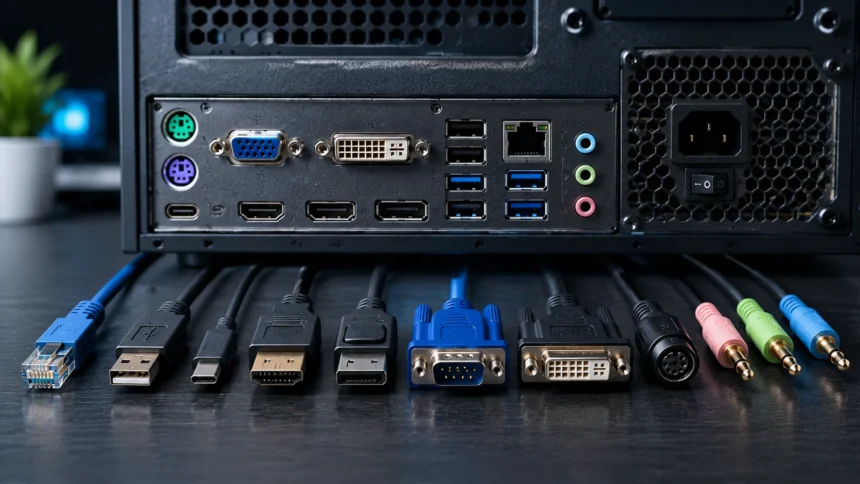
Computer Ports: Types, Uses and How They Work
Computer ports are physical or virtual connection points that allow a computer to communicate with external devices, networks, displays, storage drives, and other hardware. Physical ports are the connectors you see on laptops, desktop PCs, monitors, and docking stations, such as USB, HDMI, Ethernet, and audio jacks. They make it possible to connect keyboards, mice, printers, external drives, headphones, cameras, and many other accessories. Some ports transfer only data, while others can carry video, audio, networking signals, or electrical power. Modern ports can sometimes perform several of these functions through a single connector. Understanding computer ports helps you choose compatible devices and avoid buying cables or accessories that will not work with your system.
Computer ports have changed significantly as computers have become smaller, faster, and more portable. Older machines often included separate connectors for printers, keyboards, mice, monitors, networking equipment, and audio devices. Modern computers increasingly rely on versatile connections such as USB-C that can potentially handle data transfer, charging, video output, and peripheral connections. However, having the same connector shape does not guarantee identical capabilities because supported protocols and speeds can vary. One USB-C port may support charging and video while another handles only basic USB data. Checking specifications is therefore just as important as recognizing the physical connector.
The term computer port can also describe logical or network ports used by software communication. Network port numbers, such as those associated with web, email, or other services, are not physical holes on the computer. Instead, they help operating systems and network applications direct incoming and outgoing traffic to the correct process or service. Physical ports connect hardware, while network ports help organize software communications. Both concepts are important in computing, but they solve very different problems. This article focuses primarily on physical computer ports while also explaining network ports so the distinction is clear.
Knowing the different types of computer ports and their functions can make troubleshooting much easier. If a monitor is not displaying an image, understanding HDMI, DisplayPort, USB-C video support, and adapters can help identify the problem. If an external drive transfers files slowly, the USB generation or cable may be responsible rather than the drive itself. Network problems can similarly involve Ethernet ports, cables, or network configuration. Learning the basic purpose of each connector removes much of the confusion surrounding computer accessories. You do not need to memorize every technical specification to understand which port is appropriate for a particular task.
What Are Computer Ports?
Computer ports are interfaces through which computers connect and communicate with other hardware or systems. A physical port normally has a specific connector design intended for compatible plugs, cables, or devices. When a device is connected, the computer and peripheral communicate according to the technology supported by that interface. Depending on the port, the connection may transfer files, display information, audio, network traffic, or electrical power. Some interfaces can perform multiple functions simultaneously. Ports essentially act as gateways between the computer and the equipment surrounding it.
A desktop computer typically offers more physical ports than an ultra-thin laptop because the larger chassis provides additional space. Desktop motherboards may include numerous USB connections, audio jacks, Ethernet, and video outputs depending on the hardware configuration. Dedicated graphics cards can provide their own HDMI and DisplayPort connectors. Laptops usually offer fewer ports because manufacturers balance connectivity against portability, thickness, battery capacity, and internal component space. This has increased demand for docking stations and USB hubs. A single laptop connection can sometimes expand into several additional interfaces.
Not every connector performs the same function even when it looks similar to another one. USB-A and USB-C, for example, describe connector shapes, while supported USB standards determine many underlying capabilities. USB-C can also carry technologies beyond conventional USB data when properly implemented. Likewise, an adapter can physically connect two different connector types without guaranteeing that the required signals are compatible. Understanding both connector shape and protocol prevents many compatibility problems. Physical fit alone is not proof that two devices can communicate correctly.
Ports can also become outdated as newer technologies replace older standards. Parallel, serial, PS/2, VGA, and certain other connectors were once extremely common on personal computers. Modern consumer systems have largely replaced them with USB, HDMI, DisplayPort, wireless technologies, and other newer interfaces. Legacy ports remain important in industrial, scientific, business, and specialized equipment where older hardware continues operating reliably. This means you may still encounter them even if they are uncommon on new laptops. Computer connectivity evolves gradually rather than every older interface disappearing immediately.
Why Are Computer Ports Important?
Computer ports are important because they expand what a computer can do beyond its built-in hardware. A laptop may have an excellent processor and display but still need external storage, a full-size keyboard, headphones, or an additional monitor. Ports make these connections possible without requiring permanent internal modifications. Users can add and remove devices whenever their needs change. This modularity is one of the fundamental advantages of personal computing. The right connectivity can turn a small laptop into a complete workstation.
Ports also influence productivity because different interfaces offer different performance levels. A fast external SSD connected through an appropriate high-speed interface can move large files much more quickly than the same drive connected through a slower standard. High-resolution monitors may require connections capable of carrying enough display bandwidth for the desired resolution and refresh rate. Wired Ethernet can provide a stable network connection when wireless performance is inconsistent. Choosing the appropriate interface therefore affects more than simple compatibility. It can determine whether connected hardware performs anywhere near its full potential.
Power delivery has become another major role of modern computer ports. USB-C connections on supported devices can charge laptops, smartphones, tablets, headphones, and many other electronics. A compatible docking station may connect displays and peripherals while simultaneously providing power to a laptop through one cable. This reduces cable clutter and simplifies mobile workspaces. However, charging capability and maximum power levels vary between devices, chargers, cables, and ports. Users should check manufacturer specifications before assuming every USB-C connection supports the same charging features.
Ports also matter when buying a new computer. Someone who regularly uses several monitors, wired networking, SD cards, and external storage may have very different connectivity requirements from someone who primarily browses the web. A laptop with too few suitable ports can require multiple adapters or an expensive docking station. Conversely, paying for connectivity you never use may provide little benefit. Reviewing your existing peripherals before buying a computer can prevent frustration later. Port selection should be considered alongside processor, memory, storage, display, and battery specifications.
Main Types of Computer Ports
There are many types of computer ports, but modern computers commonly include some combination of USB, HDMI, DisplayPort, Ethernet, audio, USB-C, Thunderbolt-compatible connections, and memory-card readers. The exact selection depends on the computer’s purpose and design. Gaming desktops often emphasize numerous USB connections and display outputs, while business laptops may prioritize docking and wired networking. Thin consumer laptops sometimes offer only a few USB-C connections. Manufacturers choose ports according to expected users and physical space. No single selection is ideal for every person.
Computer ports can be grouped according to what they primarily carry. Data ports connect storage devices, keyboards, mice, printers, smartphones, and other peripherals. Display ports transmit video and sometimes audio to monitors, televisions, and projectors. Network ports provide wired communication with local networks and the internet. Audio connectors handle headphones, microphones, speakers, and related equipment. Modern multipurpose interfaces blur these categories because one connector can sometimes support several functions.
Ports can also be categorized as modern or legacy interfaces. Modern connections include USB-C, current USB standards, HDMI, DisplayPort, Ethernet, and Thunderbolt-capable ports. Legacy connectors include VGA, DVI, PS/2, parallel, and traditional serial ports. Older technologies are not necessarily useless, because many organizations still operate equipment designed around them. However, new consumer devices increasingly require adapters when connecting to legacy hardware. Knowing which category a port belongs to helps determine whether direct compatibility is likely.
The following sections explain the most important computer ports and their uses individually. Understanding their physical appearance is useful, but capability is even more important. Always check the computer’s technical specifications when a particular feature such as charging, high-speed data, or video output is essential. Manufacturers sometimes place symbols beside ports to indicate supported functions. Those markings can help, but documentation provides more reliable details. This is particularly important with USB-C because identical-looking ports can support different features.
USB Ports
USB stands for Universal Serial Bus, and USB ports are among the most widely used computer connections. They support devices including keyboards, mice, printers, webcams, external storage, game controllers, smartphones, microphones, and countless other peripherals. USB was created partly to simplify computer connectivity by replacing several specialized interfaces with a more universal standard. Over time, USB has evolved through multiple generations offering improved performance and additional capabilities. It is now found on computers, televisions, cars, chargers, gaming systems, and many other electronics. Its widespread adoption makes USB one of the most recognizable connectivity technologies.
USB connections come in different physical forms. USB-A is the traditional rectangular connector commonly found on desktops, laptops, chargers, and accessories. USB-C uses a smaller reversible connector that can be inserted without worrying about which side faces upward. Older devices may also use Mini-USB or Micro-USB connectors, although USB-C has replaced them in many newer products. Connector type should not be confused with transfer speed. Two ports with the same physical shape can support different USB capabilities.
USB speed depends on the supported standard and equipment used at both ends of the connection. Faster USB generations can significantly improve transfer times when copying large videos, backups, photographs, or project files to compatible storage devices. However, the effective performance is usually limited by the slowest relevant component in the chain. A high-speed port cannot make a slow flash drive suddenly perform like a fast SSD. Cables can also affect performance and feature support. Matching the computer, cable, and peripheral is therefore important when maximum performance matters.
USB can also deliver electrical power to connected devices. Simple peripherals may receive all the power they need directly from the computer, eliminating separate power adapters. USB-C with appropriate power-delivery support can handle much greater charging requirements, including certain laptops and monitors. Some monitors can even provide charging, display connectivity, and peripheral access through one USB-C cable. These capabilities make USB increasingly versatile. Nevertheless, users should verify power requirements because not every USB connection supplies the same wattage.
USB-A Ports
USB-A is the familiar rectangular USB connector that has appeared on personal computers for decades. It remains common on desktops, laptops, docking stations, televisions, chargers, and countless peripherals. Flash drives, wired keyboards, mice, webcams, and printer cables frequently connect through USB-A. Its huge installed base means it will remain useful even as USB-C becomes more prominent. Many current computers include both connector types to support older and newer accessories. USB-A therefore continues to provide excellent practical compatibility.
One limitation of USB-A is that the connector is not reversible. The plug must be oriented correctly before insertion, unlike USB-C. The larger physical size also makes it less suitable for extremely thin mobile devices. These limitations helped encourage development and adoption of smaller connectors. However, physical size has little to do with whether USB-A can provide fast data transfers. Different USB generations have used the same basic USB-A connector. You need the port specifications to know its actual maximum capabilities.
Users sometimes identify USB speed by connector color, but this approach is not completely reliable. Manufacturers have used different colors to distinguish certain generations or special functions, yet implementation is not universally consistent enough to replace documentation. Symbols printed beside the port may provide additional clues. The safest method is to check the computer or motherboard specifications. This is particularly important when connecting fast external SSDs. Using the wrong USB port can unnecessarily limit performance.
USB-A remains extremely useful for legacy compatibility. Someone upgrading to a new computer may already own several USB-A keyboards, drives, microphones, and other accessories. A computer containing at least one USB-A connection can use many of those devices without an adapter. Systems with only USB-C require hubs or individual adapters for traditional peripherals. Whether that matters depends entirely on your existing equipment. Port selection should therefore reflect the devices you actually use.
USB-C Ports
USB-C is a compact, reversible connector used across laptops, smartphones, tablets, monitors, docking stations, storage devices, and other modern electronics. Its greatest advantage is versatility because a properly equipped USB-C connection can potentially carry data, video, and power through one cable. The reversible design also makes everyday connection easier than traditional USB-A. Manufacturers can use USB-C to reduce the number of separate connectors required on thin devices. This has made it especially popular on portable computers. However, its versatility also creates significant confusion about what individual USB-C ports actually support.
The USB-C connector shape does not guarantee a specific data-transfer speed. One port may support relatively basic USB functionality while another supports much faster transfer standards. Some USB-C connections can output video using supported alternate modes, while others cannot. Power-delivery capabilities also vary considerably. Two laptops with visually identical USB-C ports may therefore offer very different functionality. Always check the device specifications instead of assuming capabilities based on appearance.
USB-C can simplify desk setups when the computer and accessories support the necessary features. A compatible monitor or dock may receive the laptop’s display signal while sending power back to charge the computer. USB peripherals and Ethernet can also be connected through the same docking setup. The user may then connect the laptop to an entire workstation using one cable. This is particularly convenient for people who frequently move between office and mobile environments. Cable management also becomes significantly cleaner.
Cable selection matters with USB-C because not every cable supports every feature or performance level. A cable designed primarily for charging may not provide the high data speeds required by an external SSD. Another cable may support fast data but have different charging limits. Video and high-performance connectivity can impose additional requirements. Buying properly specified cables from reputable manufacturers reduces compatibility problems. USB-C is highly capable, but getting the full benefit requires compatible equipment throughout the connection.
HDMI Ports
HDMI stands for High-Definition Multimedia Interface and is commonly used to connect computers to monitors, televisions, projectors, and other displays. HDMI can transmit digital video and audio through a single cable, making it convenient for both home entertainment and workplace presentations. Most modern televisions include several HDMI inputs, which makes computers easy to connect directly. Many laptops and desktop graphics cards also provide HDMI outputs. The technology supports high-definition and higher-resolution video depending on the HDMI version and connected hardware. It remains one of the most widely recognized display interfaces.
HDMI is especially convenient when connecting a laptop to a television. One cable can carry the picture and sound, eliminating the need for a separate audio connection. This is useful for presentations, streaming movies, displaying photographs, or creating a larger workspace. Computers can typically mirror their built-in screen or extend the desktop onto the external display. Extended mode provides additional workspace rather than duplicating the same content. Operating-system display settings control these options.
Different HDMI versions support different combinations of resolution, refresh rate, bandwidth, and additional features. The computer’s graphics hardware, port implementation, cable, and display all influence what can actually be achieved. A high-refresh-rate gaming monitor may require more bandwidth than an older HDMI connection can provide. Likewise, owning a newer cable cannot add capabilities that the computer’s output lacks. The entire connection chain needs to support the desired configuration. Checking specifications prevents disappointing results.
HDMI connectors also exist in multiple physical sizes, although the full-size connector is most common on computers and televisions. Smaller variants have appeared on cameras and compact electronics. Adapters can connect certain HDMI connector sizes without converting the underlying digital signal. HDMI can also be adapted to other display technologies in many situations, although compatibility depends on signal direction and hardware. For ordinary computer-to-TV use, standard HDMI remains one of the simplest choices. Its combination of video and audio makes it especially user-friendly.
DisplayPort
DisplayPort is a digital display interface widely used with desktop computers, professional monitors, and gaming displays. Like HDMI, it can transmit high-quality video and audio through a single connection. DisplayPort is particularly common on dedicated graphics cards where several outputs may be available for multi-monitor setups. Depending on the supported version and hardware, it can handle demanding combinations of resolution and refresh rate. This makes it popular among gamers, creative professionals, and users with advanced workstation displays. It is less common on televisions, where HDMI usually dominates.
One advantage of DisplayPort is its strong focus on computer-display applications. Modern versions support high display bandwidth and features useful for high-resolution or high-refresh-rate monitors. Some implementations also support connecting multiple displays through technologies such as Multi-Stream Transport when the equipment is compatible. This can simplify complex workstation configurations. DisplayPort is therefore well suited to productivity environments with several screens. Actual supported configurations still depend on the computer’s graphics hardware.
A smaller connector called Mini DisplayPort was used on some laptops and other devices. Full-size DisplayPort remains common on desktop graphics cards and monitors, while USB-C has absorbed some roles previously filled by Mini DisplayPort. Certain USB-C ports can carry DisplayPort video signals when the device supports the required mode. This allows thin laptops to connect to DisplayPort monitors through appropriate cables or adapters. The USB-C connector itself does not guarantee this capability. Device specifications must confirm video support.
Choosing between HDMI and DisplayPort often depends on the equipment you already own. For a television, HDMI is generally the easiest choice because it is nearly universal on modern TVs. For high-performance PC monitors, DisplayPort may provide an excellent option depending on supported standards and desired resolution or refresh rate. Many modern monitors support both, giving users flexibility. Neither connector is automatically superior in every situation. The correct choice is the one that supports the required features across both devices.
Ethernet Ports
An Ethernet port allows a computer to connect directly to a wired local network. The familiar connector used for many Ethernet connections resembles a wide telephone-style plug and is commonly associated with RJ45-style network cabling. Ethernet ports appear on desktop PCs, routers, switches, business laptops, docking stations, and other networking equipment. A cable connects the computer to a router, switch, or network outlet. This provides network access without relying on Wi-Fi. Wired connections remain important even in environments with strong wireless coverage.
Ethernet can offer stable performance, low latency, and predictable connectivity. This makes it attractive for gaming, large file transfers, video conferencing, servers, network storage, and professional workstations. Wi-Fi performance can vary because of distance, walls, interference, and congestion from nearby wireless networks. Ethernet avoids many of these radio-related problems. The tradeoff is reduced mobility because the device must remain physically connected. Desktop computers often benefit the most because they rarely need to move.
Ethernet connections can operate at different speeds depending on the network adapters, switches, routers, and cables involved. Gigabit Ethernet has long been common, while faster multi-gigabit networking is increasingly available on higher-end computers and networking equipment. As with other interfaces, the slowest part of the network path can limit effective performance. Installing a faster computer port alone does not make an internet connection faster than the service plan or router supports. Local file transfers can still benefit from faster networking even when internet speed remains unchanged.
Many thin laptops omit built-in Ethernet because the connector takes up physical space. Users can add wired networking through a compatible USB or docking-station Ethernet adapter. This is particularly common in offices where one USB-C dock provides networking, displays, charging, and peripherals. Travelers may also carry a small adapter when reliable wired internet is necessary. Before buying an adapter, check its supported network speed and USB interface. A cheap adapter with a slow connection can become a performance bottleneck.
Audio Ports
Audio ports connect computers to headphones, speakers, microphones, headsets, and other audio equipment. The traditional 3.5 mm audio jack remains common on many desktops and laptops despite the growth of wireless headphones and USB audio. Desktop computers may provide separate connections for headphones or speakers, microphones, line input, and multi-channel audio. Laptops frequently combine headphone and microphone functions into one headset jack. The exact configuration depends on the computer’s audio hardware. Icons or colors can help identify each connection.
A headphone output sends an audio signal from the computer to headphones or powered speakers. A microphone input receives an audio signal from an external microphone. Combined headset jacks can handle both functions using one compatible plug. Users sometimes experience problems when connecting equipment designed for a different wiring standard or connector type. An adapter may be necessary when using separate microphone and headphone plugs with a combined laptop jack. Understanding the intended input and output prevents connection mistakes.
USB audio has become increasingly common as well. USB microphones, gaming headsets, audio interfaces, and external sound devices can bypass the computer’s traditional analog audio jack. These devices contain their own digital audio hardware and may offer additional features or improved recording capabilities. Professional audio interfaces often connect through USB or other high-speed connections. Bluetooth provides another alternative for wireless audio. Traditional audio ports therefore coexist with several digital options.
Audio quality depends on more than the physical port. The computer’s digital-to-analog converter, amplifier, headphones, speakers, recording equipment, and source material all affect the result. Switching to another connector will not necessarily improve sound if the rest of the equipment remains the limiting factor. Professional users may require dedicated audio interfaces for high-quality recording and monitoring. Everyday users can often achieve perfectly suitable results from the built-in headphone connection. The appropriate solution depends on the intended audio workload.
Thunderbolt Ports
Thunderbolt is a high-performance connectivity technology designed to carry large amounts of data and support demanding peripherals. Modern Thunderbolt implementations use the USB-C connector, which means a Thunderbolt-capable port can look identical to an ordinary USB-C port. Thunderbolt is commonly found on premium laptops, creative workstations, docks, external storage systems, and professional accessories. It can support high-speed data, displays, and other functions depending on the device generation and implementation. This versatility makes it valuable for users who need powerful single-cable connectivity. However, compatible equipment can cost more than basic USB accessories.
One major use for Thunderbolt is high-performance external storage. Video editors and other creative professionals may work with very large media files that need fast sustained transfers. A compatible Thunderbolt SSD or storage array can provide substantially more bandwidth than slower peripheral connections. Thunderbolt docks can also connect multiple monitors, storage devices, Ethernet, and other accessories through one computer port. This turns a portable laptop into a desktop-style workstation quickly. The exact capabilities depend on the computer, dock, cable, and connected devices.
Because modern Thunderbolt uses USB-C, users should not assume every USB-C connection supports Thunderbolt. Manufacturers often place a lightning-related symbol near compatible ports, but specifications remain the best source of confirmation. Likewise, a Thunderbolt cable may look similar to an ordinary USB-C cable while supporting different capabilities. Using an unsuitable cable can limit performance or functionality. This visual similarity is one of the most common sources of modern port confusion. Checking labels and documentation saves considerable troubleshooting time.
Thunderbolt is not necessary for every computer user. Someone connecting a mouse, keyboard, flash drive, and basic monitor may gain little from paying extra for high-end connectivity. Professionals moving huge files or operating advanced docking setups can benefit much more. The best interface is determined by workload rather than simply choosing the technology with the highest specifications. Standard USB-C is sufficient for many everyday tasks. Thunderbolt becomes valuable when its additional capabilities are actually needed.
SD Card and Memory Card Slots
An SD card slot allows compatible memory cards to be inserted directly into a computer. Photographers and videographers frequently use SD cards in cameras, making built-in readers especially convenient for transferring media. Instead of connecting the camera itself or carrying a separate reader, the user can remove the card and place it into the computer. Some laptops aimed at creative professionals continue to include full-size SD slots for this reason. Other computers provide smaller microSD readers. Thin consumer laptops may omit memory-card slots entirely.
Memory cards vary in capacity and performance. Fast cameras can generate large photo bursts or high-bitrate video that benefits from higher-performance cards. The computer’s card reader also needs sufficient speed to transfer that data efficiently. A fast card placed into a slow reader will operate below its potential during file transfers. Professional photographers who regularly move hundreds of gigabytes may therefore care significantly about reader performance. Casual users transferring a few photographs may notice little difference.
External USB card readers provide an easy solution when a computer lacks the required slot. These devices range from small single-card adapters to multi-format readers designed for professional workflows. A USB-C reader can be particularly convenient for modern laptops with limited connectivity. When purchasing one, confirm both the supported card type and interface speed. Older readers may not support newer high-capacity or high-performance card standards properly. Compatibility matters on both sides of the connection.
Memory cards should be removed safely when the operating system is actively writing data. Pulling a card during a transfer can corrupt files or damage the file system. Using the operating system’s eject function helps ensure pending writes are completed. Important photographs and videos should also be backed up rather than stored permanently on one memory card. The card slot is primarily a convenient transfer interface. Good storage practices remain necessary after the files reach the computer.
VGA Ports
VGA stands for Video Graphics Array and is a legacy analog video interface once widely used for computer monitors and projectors. The connector is typically recognizable by its 15-pin design and screw points that secure the cable. VGA became extremely common on desktop PCs, laptops, schools, offices, and conference-room projectors. Modern computers have largely replaced it with digital interfaces such as HDMI, DisplayPort, and USB-C video. Nevertheless, VGA equipment remains in use in older workplaces and educational environments. Users may therefore still encounter it occasionally.
VGA transmits an analog video signal rather than the digital signals used by modern display interfaces. Signal quality can decline with long cables, interference, or poor-quality equipment. Higher resolutions may appear less sharp compared with a suitable digital connection. VGA also does not normally carry audio, so sound requires a separate connection when needed. These limitations make it less convenient for modern multimedia setups. Digital display technologies provide cleaner and more versatile alternatives.
Connecting a modern digital-only laptop to a VGA projector may require an active adapter. A simple physical cable is not always sufficient because the signal may need to be converted from digital to analog. The correct adapter depends on whether the computer provides HDMI, DisplayPort, or compatible USB-C video output. This is important for people who regularly present in buildings with older projectors. Keeping the right adapter in a laptop bag can prevent last-minute presentation problems. Always test unfamiliar display equipment before an important event when possible.
There is generally little reason to choose VGA when both devices support a modern digital alternative. HDMI or DisplayPort usually provides better image quality and additional capabilities. VGA remains useful mainly for compatibility with older equipment that is expensive or inconvenient to replace. Industrial systems can also retain legacy displays for many years. Understanding VGA is therefore still worthwhile even though it is no longer a preferred modern connection. Legacy technology often survives much longer in professional environments than in consumer electronics.
DVI Ports
DVI, or Digital Visual Interface, is another display connection commonly found on older desktop computers and monitors. It appeared during the transition from analog VGA toward modern digital display technologies. Different DVI variants can support digital signals, analog signals, or both, depending on the connector and hardware. This variation can make DVI more confusing than newer interfaces. It was once extremely common on desktop graphics cards. HDMI and DisplayPort have largely replaced it on current consumer systems.
DVI connectors are relatively large compared with HDMI and USB-C. This makes them unsuitable for thin laptops and compact devices. DVI also lacks many of the convenient multimedia capabilities associated with modern display standards. Audio support is not a normal universal feature of traditional DVI setups, so separate audio connections may be required. Nevertheless, DVI can still provide a clean digital picture on compatible older monitors. There is no need to replace functioning equipment solely because the connector is older.
Adapters can often connect certain DVI devices to HDMI because some configurations use compatible digital video signaling. However, resolution, refresh rate, audio, and specific DVI variants need to be considered. Not every adapter solves every compatibility problem. Dual-link and single-link DVI configurations also differ in available bandwidth. Users attempting to run older high-resolution or high-refresh displays should check the exact monitor and graphics-card requirements. Generic assumptions can produce disappointing results.
DVI is now best considered a legacy computer-display connection. It remains relevant for older office monitors, secondary screens, and desktop hardware that continues to work reliably. New systems increasingly require an adapter to connect to DVI displays. When replacing old equipment, choosing HDMI, DisplayPort, or suitable USB-C connectivity provides better long-term flexibility. Understanding DVI remains useful for troubleshooting mixed-generation computer setups. Many workplaces still contain monitors from several technology generations.
PS/2 Ports
PS/2 ports are legacy connectors historically used for keyboards and mice. They are small round connectors containing several pins and were once standard on desktop computers. Traditionally, different colors were used to distinguish keyboard and mouse connections. USB eventually replaced PS/2 for most consumer peripherals because it provides greater versatility and easier device connection. Modern laptops almost never include PS/2 ports. Some desktop motherboards still provide one for compatibility or specialized use.
PS/2 differs from modern USB in several ways. Traditional systems did not always support hot-plugging PS/2 devices safely, meaning users were expected to connect them before starting the computer. USB devices are designed with plug-and-play use in mind and can generally be connected or removed while the system is operating. USB also supports a huge range of devices beyond keyboards and mice. These advantages made it the natural replacement for PS/2. Convenience played a major role in the transition.
Some enthusiasts and specialized users still value PS/2 keyboard support. Certain implementations can handle keyboard input without the same USB polling behavior, although practical benefits depend on the hardware and use case. PS/2 can also be useful when troubleshooting a system with problematic USB support. These are niche advantages rather than reasons for ordinary users to seek the connector. USB keyboards work perfectly well for most people. The continued presence of PS/2 mainly reflects compatibility and specialized requirements.
Adapters exist between PS/2 and USB, but compatibility is not always guaranteed by connector conversion alone. Some older peripherals need electronics capable of translating between the protocols rather than a simple passive adapter. Users working with vintage computers should verify the specific device requirements. For new equipment, native USB is generally easier and more flexible. PS/2 is mainly relevant when maintaining older systems. It remains an interesting example of how computer ports evolve over time.
Serial Ports
Serial ports are legacy communication interfaces used to transmit data sequentially between computers and external equipment. Traditional PC serial connections commonly used D-sub connectors and standards such as RS-232. They were historically used for modems, mice, terminals, networking equipment, industrial machinery, and scientific devices. Consumer computers rarely include traditional serial ports today because USB replaced many everyday applications. However, serial communication remains highly relevant in technical and industrial environments. Older does not necessarily mean obsolete when specialized equipment depends on it.
Network engineers frequently encounter serial-style console connections when configuring routers, switches, and other infrastructure. Modern equipment may use USB-based console interfaces while older hardware relies on traditional serial connections. Industrial control systems can also use serial communication because the technology is simple, predictable, and deeply embedded in existing equipment. Replacing expensive machinery merely to obtain a modern connector is often unnecessary. This explains why serial interfaces remain operational decades after disappearing from most consumer laptops. Reliability and compatibility can matter more than convenience.
USB-to-serial adapters allow modern computers to communicate with equipment that requires a traditional serial interface. The adapter contains electronics that translate between USB and the required serial communication. Driver support and chipset quality can affect reliability. Professionals who regularly work with industrial or networking equipment often carry a trusted adapter rather than relying on whatever is available onsite. Configuration settings such as baud rate also need to match the connected device. A correct physical connection alone does not guarantee communication.
Serial ports demonstrate why computer connectivity cannot be judged only by what appears on modern consumer laptops. Specialized environments have much longer equipment lifecycles and different requirements. A manufacturing system installed years ago may continue producing value without needing a connectivity upgrade. Adapters allow modern maintenance computers to interact with that equipment. Learning basic serial concepts can therefore be useful for networking, electronics, automation, and industrial IT careers. The technology remains relevant even though ordinary home users rarely encounter it.
Parallel Ports
Parallel ports were historically used for printers and certain other computer peripherals. Unlike traditional serial communication, parallel interfaces transferred several bits simultaneously across multiple data lines. The large connector was a familiar sight on desktop PCs before USB printers became widespread. Users often referred to it simply as the printer port because printing was its most recognizable application. Modern consumer computers rarely include parallel ports. USB, Ethernet, and wireless networking now handle most printer connectivity.
Parallel connections had practical limitations as computer technology evolved. The connectors and cables were relatively bulky, making them unsuitable for increasingly thin computers. Cable length and signal integrity also imposed limitations compared with newer technologies. USB provided easier plug-and-play operation and could support far more types of devices through one standardized interface. Network printers further reduced the need for a dedicated computer-to-printer connection. These advantages gradually pushed parallel ports out of mainstream computing.
Older printers and specialized industrial equipment may still rely on parallel interfaces. Organizations sometimes keep such equipment because it performs a specific job reliably and replacing the entire system would be expensive. Adapter solutions may allow newer computers to communicate with certain legacy devices. Compatibility can be more complicated than simply changing the connector because software and driver support may also be outdated. Users should investigate the complete system before purchasing an adapter. Legacy hardware integration often requires both physical and software compatibility.
For most modern users, parallel ports are mainly important for historical understanding and legacy troubleshooting. You are unlikely to need one when buying a new laptop or desktop for ordinary work. Printers now commonly connect through USB, Wi-Fi, or Ethernet instead. These alternatives are easier to manage and work better in shared environments. The decline of parallel ports illustrates how universal and network-based connectivity replaced many device-specific interfaces. Modern computers can accomplish more while using fewer connector types.
What Are Network Ports?
Network ports are logical communication endpoints used by networking protocols and software applications. Unlike USB or HDMI, a network port number is not a physical connector you can see on the computer. It helps the operating system determine which application or service should receive particular network traffic. Port numbers work with transport protocols such as TCP and UDP. A server can listen for incoming connections on a particular port while other services use different numbers. This allows many network applications to share one IP address simultaneously.
A useful way to understand network ports is to think of an IP address as identifying a building and a port number as helping identify a particular service inside it. The analogy is not technically perfect, but it demonstrates why both pieces of information are useful. A web server and an email service can operate on the same machine because they can communicate through different logical ports. Operating systems track these connections and deliver traffic accordingly. Applications can also use dynamically assigned ports for temporary communication. This process happens without any physical cable being connected to a port number.
Certain port numbers are conventionally associated with common protocols. HTTP traditionally uses TCP port 80, while HTTPS commonly uses TCP port 443. DNS frequently uses port 53 with UDP or TCP depending on the operation. SSH commonly uses TCP port 22 for secure remote administration. These conventions allow clients to know where standard services are expected to listen. Administrators can sometimes configure applications to use different ports when necessary. The port number alone does not guarantee that a particular service is actually running there.
Network ports are important in cybersecurity because firewalls can permit or block traffic based partly on ports and protocols. Exposing unnecessary services to the internet can increase attack surface. Administrators therefore commonly allow only the connectivity required for legitimate applications. However, closing ports is not a substitute for keeping software patched and securely configured. Attackers can target vulnerable applications running on allowed ports as well. Network-port management is one component of a broader security strategy.
Physical Computer Ports vs Network Ports
Physical computer ports and network ports share the same word but describe very different concepts. A physical port is a hardware connector such as USB, HDMI, Ethernet, or an audio jack. You can physically insert a cable or peripheral into it. A network port is a software-defined numerical endpoint used by TCP or UDP communication. You cannot touch or see network port 443 on the computer chassis. Confusing the two concepts can make beginner networking terminology unnecessarily difficult.
The Ethernet connector illustrates the distinction clearly. A computer can have one physical Ethernet port connected to a router. Through that single physical connection, the computer can simultaneously communicate using many different logical network ports. A browser may communicate with HTTPS services while another application uses entirely different port numbers. Thousands of network conversations can potentially pass through the same physical interface. The hardware connection carries network packets, while software port numbers help organize those packets. Both levels work together without being the same thing.
Physical ports are generally discussed when choosing cables, adapters, monitors, storage drives, and peripherals. Network ports become important when configuring servers, firewalls, routers, remote-access tools, and network applications. Troubleshooting therefore starts by identifying which type of “port” is involved. A loose Ethernet cable is a physical connectivity issue, while a firewall blocking TCP port 443 is a logical networking issue. Using precise terminology speeds up problem solving. It also makes technical documentation much easier to understand.
Beginners should learn both concepts because modern computing depends heavily on physical connectivity and network communication. Hardware ports determine how devices connect locally, while network ports help applications communicate across networks. Neither concept is more important than the other; they operate at different levels. Understanding the distinction provides a strong foundation for studying networking and cybersecurity. Once this difference is clear, many discussions about open ports and computer connectors become much easier to follow.
How to Identify Ports on a Computer
The easiest way to identify a physical computer port is to examine its shape and any symbol printed nearby. Rectangular USB-A connectors, small reversible USB-C ports, wide HDMI connectors, and Ethernet sockets each have recognizable designs. Audio jacks may use headphone or microphone icons. DisplayPort often includes a display-related marking, while high-performance USB-C connections may carry additional symbols. Manufacturer documentation can confirm uncertain connectors. Visual identification is useful, but it should not be the only method when capabilities matter.
Laptop product pages often provide diagrams showing every port and its supported features. These diagrams can tell you whether a USB-C connector supports video output, charging, or a particular high-speed standard. Desktop motherboard manuals provide similar information for rear and internal connectors. Graphics-card specifications list available display outputs and supported display capabilities. Keeping this documentation available can save time during upgrades. Search using the exact model number rather than relying on information for a visually similar computer.
The operating system can provide additional information about connected hardware, although it may not always describe physical connectors directly. Device-management utilities can identify USB controllers, network adapters, graphics hardware, and other components. This can help determine which standards the computer supports. Third-party hardware-information utilities may provide further technical details. However, manufacturer specifications are generally preferable when available. Software detection and physical documentation together provide the clearest picture.
When buying a used computer, inspect the ports for physical damage as well as compatibility. Bent connectors, loose sockets, debris, or signs of corrosion can cause unreliable connections. Test important interfaces before completing the purchase when possible. A laptop with a damaged charging or USB-C port can be expensive to repair if that connector is soldered directly to the motherboard. Port condition is therefore part of overall hardware condition. This is especially important when the computer has only one or two multipurpose connectors.
How to Choose the Right Computer Port
Start by identifying what the connected device needs to accomplish. A basic keyboard requires very little bandwidth, so almost any compatible USB connection will work. An external high-speed SSD needs a much faster data interface to reach its expected performance. A 4K high-refresh monitor requires enough display bandwidth from both the computer and cable. A docking station may need video, data, networking, and charging simultaneously. Matching the interface to the workload prevents unnecessary expense and performance limitations.
Next, check the specifications of both devices. If a monitor offers HDMI and DisplayPort while the computer provides the same options, determine which combination supports the resolution and refresh rate you want. For USB storage, compare the drive’s interface with the computer’s USB capabilities. For USB-C docks, confirm that the laptop supports the required video and power features. Marketing terms alone can be confusing, so technical specifications provide better guidance. Compatibility needs to exist throughout the entire connection.
Cables and adapters deserve equal attention. A low-specification cable can prevent otherwise capable hardware from reaching its expected performance. Some USB-C cables prioritize charging, while others support higher-speed data and advanced display capabilities. Display cables also need sufficient bandwidth for demanding resolutions and refresh rates. Adapters can introduce additional limitations, particularly when converting between fundamentally different signal types. Buying the correct cable once is usually cheaper than troubleshooting several unsuitable ones.
Finally, think about future requirements. If you are buying a laptop today but expect to add external monitors, high-speed storage, or a docking station later, suitable connectivity can extend the useful life of the computer. Modern USB-C connectivity offers substantial flexibility when implemented fully. Desktop users can sometimes add expansion cards later, making port limitations easier to overcome. Laptop connectivity is generally less upgradeable. Choosing ports with future peripherals in mind can therefore prevent unnecessary adapters or an early computer replacement.
Common Computer Port Problems
One common problem occurs when a connected device is not recognized. The issue could involve the peripheral, cable, port, driver, operating system, or power requirements. Start by disconnecting and reconnecting the device securely. Test another known-working cable or port when possible. Restarting the computer can also clear temporary software problems. Troubleshooting one component at a time helps identify the actual cause without making unnecessary changes.
Slow transfer speeds are another frequent complaint. A fast external drive may be connected to an older or slower USB port, or the cable may not support the expected data rate. The storage device itself can also become the bottleneck. Small files often transfer differently from large sequential files, so benchmark numbers do not always match everyday performance. Check the specifications of every component before assuming something is defective. Performance is determined by the entire data path.
Display problems can result from incorrect cables, unsupported resolutions, graphics settings, adapters, or port limitations. If a monitor remains blank, verify that the correct input source is selected on the display. Then test another cable and confirm that the computer actually supports video through the chosen connector. USB-C is particularly important because not every USB-C port outputs video. Lowering the resolution or refresh rate temporarily can also help identify bandwidth limitations. Systematic testing is more effective than randomly replacing equipment.
Physical wear can eventually damage frequently used ports. Laptop charging and USB connectors may loosen after years of repeated insertion and removal. Dirt or debris can prevent a plug from seating correctly. Never force a connector that does not fit because damaged pins or internal components can make repairs expensive. Power off the device before attempting any cleaning recommended by the manufacturer. If the connector moves excessively or works only at certain angles, professional repair may be appropriate.
Are USB-C Ports Replacing Other Computer Ports?
USB-C has replaced several dedicated connectors on some modern laptops because of its compact size and multipurpose capabilities. One properly implemented USB-C port can potentially handle charging, high-speed data, external displays, docking, and peripherals. This allows manufacturers to create thinner devices with fewer different openings in the chassis. Users can connect a dock at a desk and gain access to many conventional ports through one cable. The approach is particularly attractive for highly portable laptops. It also creates a cleaner and more standardized connection ecosystem.
However, USB-C has not eliminated the need for every other connector. HDMI remains extremely common on televisions, projectors, monitors, and laptops because users appreciate direct compatibility. USB-A remains useful for the enormous number of existing peripherals already in circulation. Ethernet continues to provide reliable wired networking, while audio jacks remain convenient for standard headphones. Desktop computers have enough physical space to include many of these connections simultaneously. Different connectors remain useful because users have different equipment.
The biggest challenge with USB-C is capability transparency. Two identical-looking ports can behave differently, forcing users to consult specifications or interpret small symbols. A universal connector is less convenient when users cannot easily determine what features it supports. Industry standards continue evolving to improve performance and simplify connectivity, but legacy devices will remain part of real-world setups for many years. Adapters and docks therefore continue to be important. Transition periods are naturally messy when billions of older accessories still work perfectly well.
USB-C will likely remain central to modern computer connectivity because it offers an excellent combination of size and flexibility. Nevertheless, specialized interfaces will continue wherever they provide practical benefits. Desktop gamers may prefer direct DisplayPort connections, offices may need Ethernet, and photographers may value dedicated SD card readers. The future is therefore more likely to involve USB-C alongside selected specialized ports rather than one connector instantly replacing everything. User requirements will continue shaping computer design.
Which Computer Ports Do You Really Need?
For general everyday computing, a combination of USB-A and USB-C provides excellent peripheral flexibility. USB-A supports existing mice, keyboards, flash drives, printers, and many other accessories. USB-C provides compatibility with newer devices and can offer charging, high-speed data, or display output when properly supported. Having both reduces dependence on adapters. Users buying very thin laptops may accept USB-C-only designs if portability matters more. The ideal selection depends on how many older peripherals you already own.
People who frequently connect external displays should look for HDMI, DisplayPort, or USB-C with confirmed video support. HDMI is especially convenient for televisions, projectors, and many standard monitors. DisplayPort can be attractive for desktop and high-performance monitor setups. USB-C can provide a clean single-cable desk configuration when paired with a compatible monitor or dock. Check resolution and refresh-rate support before purchasing. Simply having the connector does not guarantee every display configuration will work.
Ethernet is valuable for users who need stable wired networking. Gamers, remote workers, content creators, and people transferring large files to network storage can benefit from a direct wired connection. If the laptop lacks Ethernet, a USB adapter or dock can provide it easily. Photographers should similarly consider whether an SD card slot would save them from carrying an external reader. Specialized work should influence port priorities. There is no universal list that fits every profession.
Before buying a computer, make a quick inventory of everything you connect regularly. Include monitors, storage drives, memory cards, headphones, Ethernet cables, printers, keyboards, mice, and charging equipment. Then compare that list with the computer’s available ports and supported capabilities. Add the cost of any required dock or adapters to the computer’s purchase price. A slightly more expensive model with better connectivity can sometimes be cheaper overall. Choosing ports deliberately creates a much smoother everyday experience.
Future of Computer Ports
The future of computer ports is moving toward smaller connectors that support multiple functions and higher data rates. USB-C is central to this trend because it can consolidate several types of connectivity into one compact interface. Laptops can become thinner while still supporting powerful docking systems and external peripherals. Newer interface generations continue increasing bandwidth and improving display and charging capabilities. This allows external devices to perform more like internally connected hardware. The line between portable and desktop computing continues to narrow.
Wireless technology will also reduce dependence on certain physical connections. Wi-Fi handles networking for many users, Bluetooth connects keyboards and headphones, and wireless display technologies can serve particular presentation scenarios. Cloud storage can reduce the need to carry files on physical drives. However, wireless connections do not eliminate the benefits of cables. Professionals still value predictable bandwidth, low latency, reliability, and charging capabilities. Physical ports will therefore remain important even as wireless technologies improve.
Higher-performance peripherals will continue pushing wired interfaces forward. External SSDs, high-resolution monitors, cameras, docks, and professional media equipment require increasing bandwidth. A single connection capable of handling displays, storage, networking, and power can greatly simplify workstations. Cable specifications will become increasingly important as capabilities increase. Users may need clearer labeling to understand what a particular cable or connector can actually deliver. Simplicity at the connector level can hide substantial technical complexity underneath.
Legacy connections will continue disappearing from mainstream consumer systems while remaining active in specialized environments. VGA, serial, parallel, and other older ports may survive for years in factories, laboratories, network infrastructure, and legacy business systems. Adapters will bridge these generations when modern computers need to communicate with older equipment. Computer connectivity therefore evolves through gradual transition rather than sudden replacement. Understanding both current and legacy interfaces will remain useful for technicians and IT professionals.
Final Thoughts on Computer Ports
Computer ports are essential interfaces that connect computers with peripherals, displays, networks, storage devices, audio equipment, and many other technologies. Modern computers commonly use USB-A, USB-C, HDMI, DisplayPort, Ethernet, audio, Thunderbolt-capable connections, and memory-card readers. Older systems may also contain VGA, DVI, PS/2, serial, or parallel ports. Each interface was developed for particular types of communication and hardware requirements. Some transfer only one kind of signal, while modern multipurpose connections can combine several functions. Recognizing these differences makes selecting cables and accessories much easier.
USB-C represents one of the biggest changes in modern connectivity because a single small connector can potentially support data, power, displays, and docking. However, identical-looking USB-C ports can have different capabilities, so users should always check specifications. HDMI and DisplayPort remain highly important for displays, while Ethernet provides reliable wired networking. USB-A continues supporting enormous numbers of existing peripherals. Specialized ports such as SD card readers remain valuable to particular users. The best computer therefore does not necessarily have the newest connector; it has the connections that match your needs.
It is also important to understand the difference between physical and network ports. Physical ports are connectors you can see and touch, whereas network ports are logical numbers used by applications and networking protocols. An Ethernet cable may connect through one physical socket while thousands of logical network connections travel through that interface. This distinction becomes especially important when learning networking or cybersecurity. Terms such as “open port” usually refer to network services rather than an uncovered physical connector. Knowing the context prevents confusion.
When buying or upgrading a computer, review your existing devices before making a decision. Consider your monitors, external drives, network connection, headphones, memory cards, charging requirements, and other peripherals. Check both connector type and supported capabilities instead of relying on appearance alone. The correct ports can reduce adapters, improve performance, and make a computer more convenient for years. As connectivity continues evolving, versatile interfaces will become increasingly important. A basic understanding of computer ports gives you the knowledge needed to build a compatible and efficient setup.
Frequently Asked Questions
What are computer ports?
Computer ports are connection points that allow computers to communicate with peripherals, displays, networks, storage devices, and other equipment. They include interfaces such as USB, HDMI, Ethernet, and audio jacks.
What are the most common computer ports?
Common modern computer ports include USB-A, USB-C, HDMI, DisplayPort, Ethernet, audio jacks, Thunderbolt-capable USB-C connections, and SD card readers. Availability varies by computer model.
Is USB-C better than USB-A?
USB-C is more versatile because supported implementations can provide high-speed data, charging, and video through a reversible connector. However, USB-A remains useful for many existing peripherals and accessories.
What is the difference between HDMI and DisplayPort?
Both can carry digital video and audio. HDMI is especially common on TVs and consumer displays, while DisplayPort is widely used with desktop PCs, professional monitors, and gaming displays.
What is the difference between physical ports and network ports?
Physical ports are hardware connectors such as USB or HDMI. Network ports are logical numbered endpoints used by TCP or UDP to direct network traffic to specific applications or services.