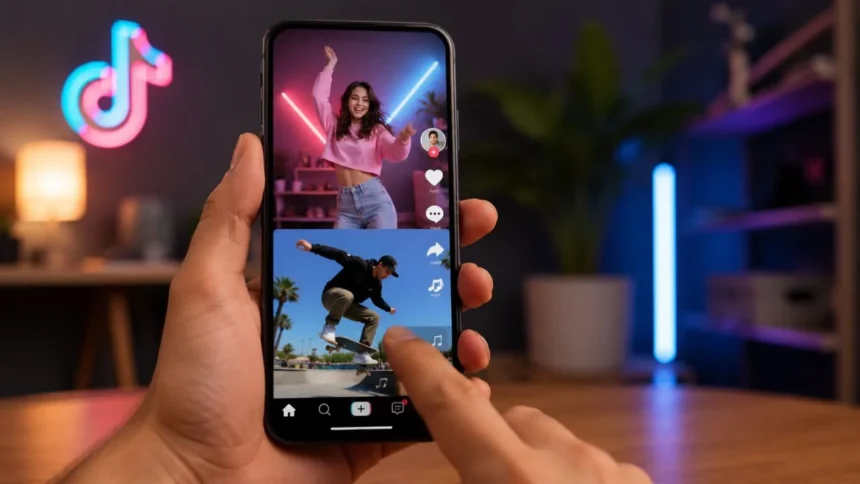
Constantly swiping through TikTok can become inconvenient when you are eating, exercising, cooking, cleaning, or holding your phone at a distance. TikTok Auto Scroll solves this problem by automatically moving to the next video after the current one finishes. It creates a more comfortable, hands-free TikTok viewing experience without requiring you to swipe upward after every post.
Turning on the feature is usually simple. Open the TikTok For You Page, press and hold the middle of a video, and select Auto scroll from the menu that appears. Once enabled, TikTok should continue playing videos and move through the feed automatically until you turn the feature off or reach content that requires manual interaction.
However, the TikTok automatic scrolling option does not appear on every account in exactly the same way. Some people can see it on both Android and iPhone, while others cannot find it even after updating their app. This difference may be caused by regional availability, account-based testing, device compatibility, or changes to TikTok’s interface.
This complete guide explains how to enable TikTok Auto Scroll, turn it off, troubleshoot a missing option, and use alternative accessibility controls safely. It also explains how automatic scrolling differs from autoplay, where the feature works best, and how to prevent hands-free viewing from turning into hours of unplanned screen time.
What Is TikTok Auto Scroll?
TikTok Auto Scroll is a viewing feature that automatically advances from one post to the next. Normally, a TikTok video repeats when it reaches the end, and the viewer must swipe upward to continue. When Auto Scroll is active, the app performs that upward movement automatically after the video finishes playing.
The feature is mainly designed for hands-free viewing. It can be useful when your hands are busy, your phone is positioned on a stand, or repeatedly swiping the screen is uncomfortable. People with limited hand movement may also find automatic TikTok scrolling more convenient than manually controlling every post in the feed.
Auto Scroll generally works within TikTok’s vertical video feed, particularly the For You Page. The For You feed is personalized using signals such as the videos you watch, skip, like, share, or comment on. Enabling Auto Scroll changes how you move through those recommendations, but it does not replace or reset the recommendation system.
The feature does not create a separate playlist or choose videos independently. It simply continues through the feed TikTok has already prepared for your account. You can still like, save, share, comment, follow creators, pause a video, or manually swipe whenever you want more control over what appears next.
How to Turn On Auto Scroll on TikTok
Open the latest version of the TikTok app and go to the For You feed. Allow a regular video to begin playing, then press and hold an empty area in the middle of the screen. Avoid pressing directly on a username, caption, button, product link, or another interactive element.
A menu should appear with options related to the video. Look for Auto scroll, which may be displayed with an upward-facing arrow or scrolling symbol. Tap the option once. The menu will close, and the automatic scrolling feature should become active immediately.
Let the current video finish without manually swiping. When the video reaches the end, TikTok should move to the next post automatically. Depending on the video and app version, the transition may happen immediately or after a brief pause at the end of the clip.
If the video simply starts playing again, Auto Scroll may not have been activated or may not be available on that account. Press and hold the video again to check whether the menu shows Auto Scroll, Manual scroll, or another active-state label. Interface wording can change between app versions.
How to Enable TikTok Auto Scroll on iPhone
On an iPhone, begin by opening the App Store and checking whether a TikTok update is available. Using the newest app version improves the chance of receiving current viewing tools and interface changes. After updating, close TikTok completely and reopen it before checking for the feature.
Go to the TikTok For You Page and play an ordinary video. Press and hold the centre of the video until the action menu opens. Select Auto scroll if it appears. The iPhone should then move to the next recommended video after the current clip finishes.
The Auto Scroll option is not normally found inside the main iPhone Settings app. It is also not always shown as a permanent switch inside TikTok’s Settings and privacy menu. For most accounts that support it, the quickest access method is through the menu that appears when a user long-presses a video.
If the option does not appear, check another standard video before assuming the feature is unavailable. Certain advertisements, LIVE videos, photo posts, shopping content, or interactive posts may display different controls. Testing several ordinary videos on the For You Page can provide a more accurate result.
How to Enable TikTok Auto Scroll on Android
Android users can follow almost the same process. Open Google Play, search for TikTok, and install any available update. Restarting the app after an update can help load new interface elements that may not appear correctly during the first session.
Open the For You feed, press and hold the middle of a normal TikTok video, and wait for the options menu to appear. Tap Auto scroll or the related upward-arrow icon. TikTok should begin advancing automatically after each supported video reaches the end.
The location of the option can differ slightly according to the phone model, TikTok version, screen size, and interface test assigned to the account. On one Android phone, Auto Scroll may appear in the first row of options. On another, the user may need to swipe across the menu or select an additional-options button.
Some Android devices also offer accessibility tools that can perform screen gestures. These controls are separate from TikTok’s native Auto Scroll feature and may behave differently. The built-in TikTok option should be used first because it does not require another application to receive accessibility permissions or control the screen.
How to Turn Off Auto Scroll on TikTok
You can turn off TikTok Auto Scroll through the same menu used to activate it. Press and hold the middle of the currently playing video. Look for an option labelled Manual scroll, Stop auto scroll, or a similar command, and tap it once.
After disabling the feature, allow the current video to reach the end. Instead of moving to the next post, the video should remain in place or begin playing again. You can then return to navigating the For You feed with ordinary upward and downward swipes.
Manually swiping may also interrupt Auto Scroll temporarily on some app versions. However, a manual swipe does not always switch the feature off permanently. Reopen the long-press menu to confirm that Manual Scroll has been restored when you no longer want videos to advance automatically.
Auto Scroll may also stop when you close the app, change feeds, open a creator’s profile, enter the comments section, or restart TikTok. Its behaviour can vary between accounts, so do not assume it will remain active during every future session. Check the feed whenever TikTok begins moving unexpectedly.
Why Is TikTok Auto Scroll Not Showing?
The most common explanation is that TikTok has not enabled the feature for your account. Social media platforms frequently release new tools in stages instead of giving them to every user on the same date. Two people using the same phone model and app version can therefore see different menu options.
Your location may also affect availability. TikTok can test features in selected countries or regions before expanding them. A tool may disappear temporarily if the company changes the test, updates local requirements, or measures how different groups use it.
An outdated TikTok app can prevent newer controls from appearing correctly. The option may also be missing when the operating system is old, the app cache contains damaged temporary files, or TikTok has not refreshed your account configuration after an update.
The type of content can make a difference as well. A regular video may support the Auto Scroll menu while a photo carousel, advertisement, sponsored post, LIVE stream, or interactive shopping video displays different actions. Test the option on several standard videos before beginning technical troubleshooting.
How to Fix TikTok Auto Scroll Not Working
Start by updating TikTok through the App Store or Google Play. Also check whether your iPhone or Android device has a pending operating-system update. Newer app features may work incorrectly when the phone is using outdated software or when the app installation has not been refreshed.
Close TikTok completely and restart your phone. Reopen the app, connect to a stable internet connection, and test Auto Scroll on a standard For You video. This simple process can correct temporary problems involving background activity, video loading, memory, or app-menu responsiveness.
TikTok also allows users to clear temporary app files. Open Profile, tap the menu icon, choose Settings and privacy, and find the option for freeing space or clearing the cache. Clear only temporary cache data unless you understand how another option may affect downloads or drafts.
When the feature is still missing, report the issue through Settings and privacy, followed by Report a problem. Select the closest topic, explain that Auto Scroll is unavailable or not working, and provide screenshots when possible. Reporting the issue does not guarantee immediate access, but it can help TikTok identify technical problems.
Can You Force TikTok to Add Auto Scroll?
There is no reliable setting that forces TikTok to activate an account-based feature. Updating, restarting, and clearing the cache can fix a technical problem, but these actions cannot guarantee access when TikTok has not included your account in the feature’s current rollout.
Logging out and signing back in may refresh the account session, but it should be done carefully. Confirm that you know your password and have access to the connected phone number or email address. Draft videos are stored locally and can sometimes be lost when TikTok is removed or app data is deleted.
Creating a new account purely to gain Auto Scroll is also unreliable. One account may receive the option while another does not, but access can change later. Maintaining multiple accounts only for one experimental feature may create more inconvenience than continuing to swipe manually.
Avoid websites claiming they can unlock hidden TikTok features after receiving your username, password, verification code, or payment. Legitimate feature access is controlled by TikTok’s app and servers. Sharing login information can expose your account to theft, spam, unwanted posts, or permanent loss of access.
TikTok Auto Scroll vs Autoplay
Autoplay and Auto Scroll are related but different functions. Autoplay begins playing a video without requiring the viewer to press a play button. TikTok normally starts videos automatically as users move through the For You Page.
Auto Scroll controls what happens when the current post finishes. Instead of leaving the viewer on the same video, it advances to the next recommended post. This is why a user can have ordinary autoplay without having TikTok automatic scrolling enabled.
A looping video is another source of confusion. When Auto Scroll is off, TikTok may replay the same short video repeatedly. The repeated playback does not mean the automatic scrolling feature is broken; it usually means the viewer is still using the normal manual feed.
Understanding the difference makes troubleshooting easier. When a video starts by itself but never moves to the next one, autoplay is working while Auto Scroll is inactive. When TikTok changes videos without an upward swipe, automatic scrolling or another gesture-control feature is probably active.
Does Auto Scroll Work With Photo Posts and LIVE Videos?
Photo posts behave differently from standard TikTok videos because viewers may need time to read text or move between several images. Auto Scroll may pause on these posts, allow the photo sequence to progress first, or require the viewer to swipe manually.
LIVE videos do not have a natural ending in the same way as recorded clips. As a result, an automatic feed may remain on a LIVE stream until the user swipes away. The exact behaviour can change according to TikTok’s current app design and the way the stream is presented.
Advertisements and TikTok Shop posts may also include buttons, landing pages, product cards, or interactive elements. Auto Scroll can behave differently around these posts because TikTok may allow the viewer time to respond to the content rather than immediately advancing.
When Auto Scroll stops on one unusual post, try swiping to the next normal video before changing any settings. A temporary pause does not always mean the feature has been disabled. If every following video also repeats, open the long-press menu and activate Auto Scroll again.
Benefits of Using TikTok Auto Scroll
The clearest benefit is hands-free TikTok viewing. You can place the phone on a desk, kitchen counter, exercise machine, or stand and continue watching without touching it after every clip. This can make short viewing sessions more comfortable.
Auto Scroll may also improve accessibility for users who find repeated swiping difficult or painful. A person with reduced hand movement, an injury, fatigue, or limited coordination may find it easier to interact only when an interesting post appears.
The feature can be useful while following educational videos, language lessons, recipes, fitness demonstrations, or short news summaries. Instead of repeatedly reaching for the screen, viewers can focus on listening and watching while TikTok moves through recommended posts.
It can also reduce unnecessary contact with the phone when the user’s hands are wet, dirty, covered by gloves, or occupied with another safe activity. However, TikTok should never be watched while driving, operating machinery, crossing roads, or completing work that requires full attention.
Disadvantages of Automatic TikTok Scrolling
Automatic scrolling makes it easier to continue watching without making a conscious decision after each video. Removing the physical action of swiping can reduce the small pause that might otherwise encourage a person to close the app.
It may also cause users to miss content. A video can advance before the viewer finishes reading a caption, studying information on the screen, or deciding whether to save the post. Longer captions and detailed educational videos may require manual control.
Auto Scroll still relies on TikTok’s recommendation system. The For You feed is shaped partly by how users watch, skip, like, comment, and share content. Allowing many videos to play fully in the background may send different engagement signals from actively choosing what to watch. TikTok says watch time and other interactions help influence recommendations.
The feature can also use more mobile data and battery power because videos continue loading until the app is stopped. Leaving TikTok running while you are no longer paying attention may consume data, generate heat, play unwanted audio, and reduce the phone’s remaining battery life.
How to Use Auto Scroll Without Wasting Time
Decide how long you plan to watch before turning on Auto Scroll. Setting a phone timer for 10, 20, or 30 minutes creates a clear stopping point. Without a limit, hands-free scrolling can make a brief break continue much longer than expected.
TikTok provides screen-time tools such as daily limits, break reminders, sleep reminders, weekly updates, and a screen-time dashboard. These settings can help users monitor how long they spend in the app and create interruptions during extended viewing sessions.
To find these tools, open Profile, tap the menu button, choose Settings and privacy, and open Screen time. Select a realistic limit rather than one you will immediately ignore. A small reduction that can be followed consistently is often more useful than an extreme restriction.
Automatic scrolling has received wider attention because autoplay, infinite feeds, and highly personalized recommendations can encourage continuous use. In February 2026, European regulators raised concerns about the possible effects of these design features, particularly on younger and vulnerable users.
Safe Alternatives When Auto Scroll Is Unavailable
The safest alternative is manual scrolling. Although it requires more interaction, it gives you control over timing and helps prevent the feed from continuing after you stop paying attention. It also makes it easier to pause on posts with detailed information.
iPhone Voice Control and Android accessibility services may allow users to create spoken commands or gestures for moving through the feed. These features can be helpful for genuine accessibility needs, but setup differs between devices and operating-system versions.
Be cautious with third-party auto-scrolling apps. Some require broad accessibility permissions that allow them to observe screen content or perform gestures. TikTok states that it does not own or operate third-party services and advises users to review and remove connected-app permissions when necessary.
Never install an unknown app solely because it promises unlimited TikTok Auto Scroll. Review its developer, privacy policy, download history, permissions, and recent feedback. Avoid any tool that requests your TikTok password or asks you to install software outside the official App Store or Google Play.
Final Thoughts
TikTok Auto Scroll provides a convenient way to watch videos without manually swiping after every post. For accounts that support it, the simplest method is to open the For You Page, press and hold a standard video, and tap Auto scroll.
The feature can normally be disabled by pressing and holding the screen again and choosing Manual Scroll or the corresponding stop option. Because TikTok regularly tests interface changes, the wording, symbol, and position may look slightly different on different devices.
When Auto Scroll does not appear, update TikTok, restart the phone, clear temporary cache files, and test several regular videos. If the option remains unavailable, it is likely that TikTok has not activated it for the account or region rather than there being a serious problem with the phone.
Use automatic scrolling thoughtfully. It can make TikTok more accessible and convenient, but it can also make extended viewing easier. Combining Auto Scroll with daily screen-time limits and break reminders provides a more balanced way to enjoy hands-free TikTok videos.
FAQs About TikTok Auto Scroll
How do I turn on Auto Scroll on TikTok?
Open the For You Page, press and hold the centre of a regular video, and tap Auto scroll in the menu. The app should move to the next video when the current one ends.
Why don’t I have Auto Scroll on TikTok?
The feature may not be available for your account, device, app version, or region. Update TikTok, restart the phone, clear the cache, and test the menu on several standard videos.
Is TikTok Auto Scroll available on iPhone and Android?
It can appear on both iPhone and Android, but availability is not always consistent. TikTok may release or test the option with selected accounts before providing it more widely.
How do I stop TikTok from automatically scrolling?
Press and hold the video and choose Manual scroll, Stop auto scroll, or the related option. Closing or restarting TikTok may also stop the feature on some app versions.
Does TikTok Auto Scroll work on every post?
Not always. Photo carousels, LIVE streams, advertisements, and interactive shopping posts may behave differently. You may occasionally need to swipe manually before automatic scrolling continues.